
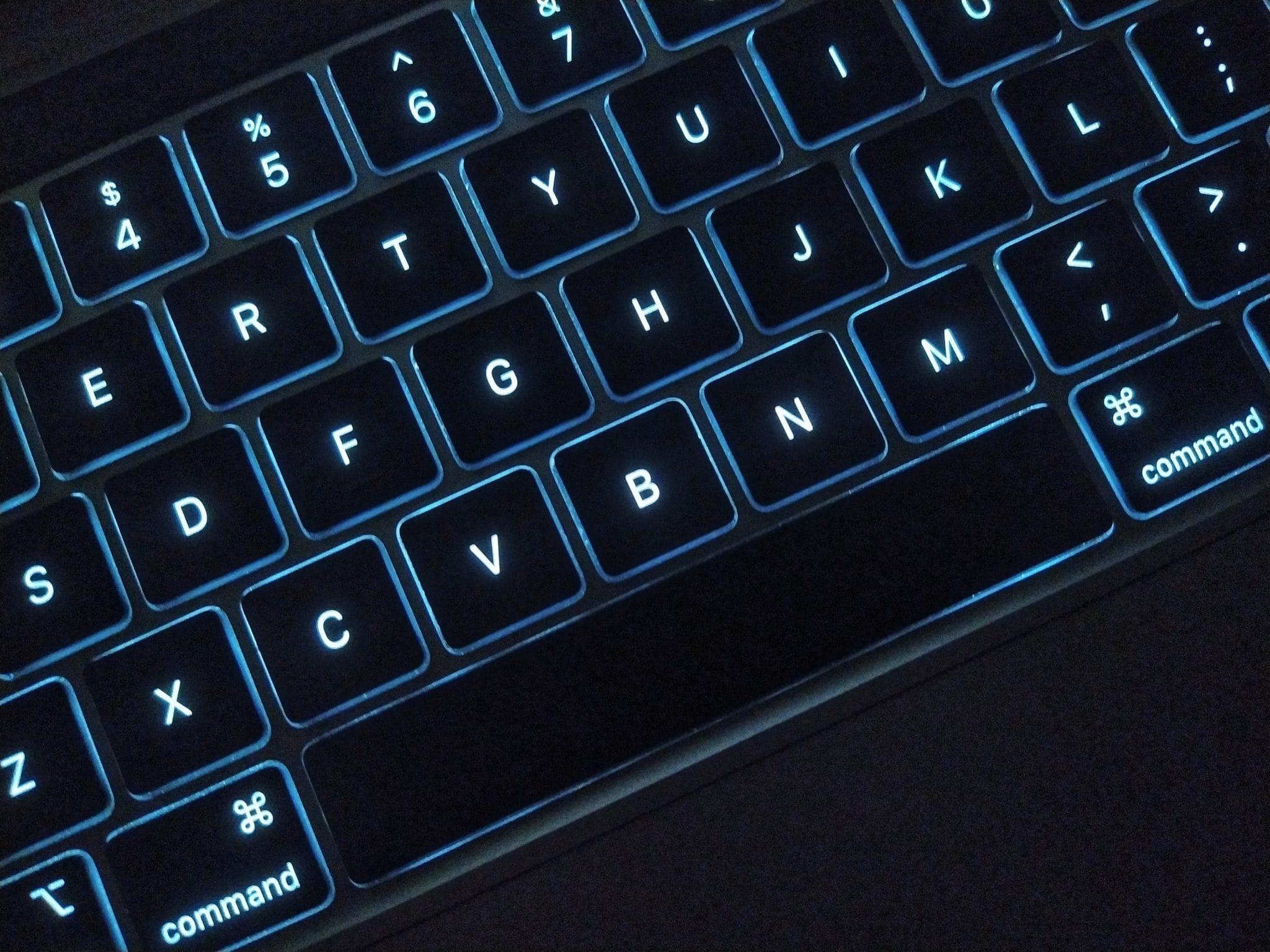
Time saving Mac keyboard shortcuts for managing windows, apps, and Finder folders.
Shortcuts Every Mac User Needs
Keyboard shortcuts can enhance users’ productivity and save time, but not everyone knows about them. If you own a Mac, these are the keyboard shortcuts you need to start using now.
Minimize Or Dock The Front App Window: Command + M
If you have several open apps, browsers, and Finder windows, use this shortcut to minimize the front window to the Dock. And if you want to minimize all active windows at the same time, useOption + Command + M.
Close An Active Window: Command + W
With this keyboard shortcut, you can close the front window. If you want to close all tabs but do not want to downright quit the program, just use the shortcutOption + Command + W.
Quit A Program: Command + Q
Clicking the redX buttonon an open window does not actually let you quit the program. Rather, it simply docks the app. To fully quit the app, use the above shortcut.
Force Quit A Program: Option + Command + Escape
Sometimes, an app may become unresponsive, disrupting your productivity. This shortcut shows you all your open applications, which you can then shut down by hittingForce Quit. If you need to switch to another app, you can do so by usingCommand + Tab. PressCommand + Shift + Option + Escapeto close an active app.
Hide Apps: Command + H
This shortcut hides an active window and is particularly useful when you want to quickly conceal what’s on your screen. You can also use it to declutter your screen by keeping only one app active.
Open Folders In Finder: Command + Shift + A/u/d/h/i
With these keyboard combinations, you can quickly view folders by pressing the appropriate letter. In particular, you can view the Applications (letter A), Utilities (letter U), Desktop (letter D), Home (letter H), and iCloud (letter I) folders without having to click several apps.
Shut Down Your Mac: Control > Option > Command > Power Button Or Control > Op...
If you want to quickly turn off your Mac, this shortcut shuts down everything, including apps, the operating system, and power.
Take A Screenshot
Screenshots are useful for record-keeping and when you want to show others what you see on your screen, among other reasons. You can easily capture an image of your screen using these shortcuts:
- Command + Shift + 3lets you take a snapshot of your entire screen.
- Command + Shift + 4turns your cursor into a set of crosshairs that make it easy to select specific areas of your screen.
- Command + Shift + 4 + Spacebartakes a screenshot of your current window (e.g., browser window, Notes app, etc.) without changing its dimensions.
Other Shortcuts You May Not Know About
These shortcuts can spare you from having to look for and click on the right buttons or icons:
- Command + Spacebaropens the Spotlight Search bar on the upper center of your screen, which you can then use to search for files or programs on your device.
- Command + Option + Dhides the Dock.
- Command + Shift + [ or ]lets you cycle through multiple tabs in Safari by pressing the bracket buttons (“[“when moving right and“]”when moving left).
- Command + Shiftshows you all the open tabs in an active browser.
- Command + , (comma key) opens the active app’s settings.
- Command + Shift + T opens and shows you the last closed tab in the active browser.
Everyone should use hotkeys to work faster and more efficiently. To enhance the usability of your MacBook, iMac, MacBook Pro, or any of your business devices, get in touch with our experts today.
Published with permission from TechAdvisory.org.Source.
Schedule a no-pressure consultation with our team.
Similar Articles
View all

Step into a safer, Stronger Business.
When you’re ready to move beyond “good enough,” we’re here to help. Reach out to schedule a no-pressure consultation and find out whether we’re a fit.