
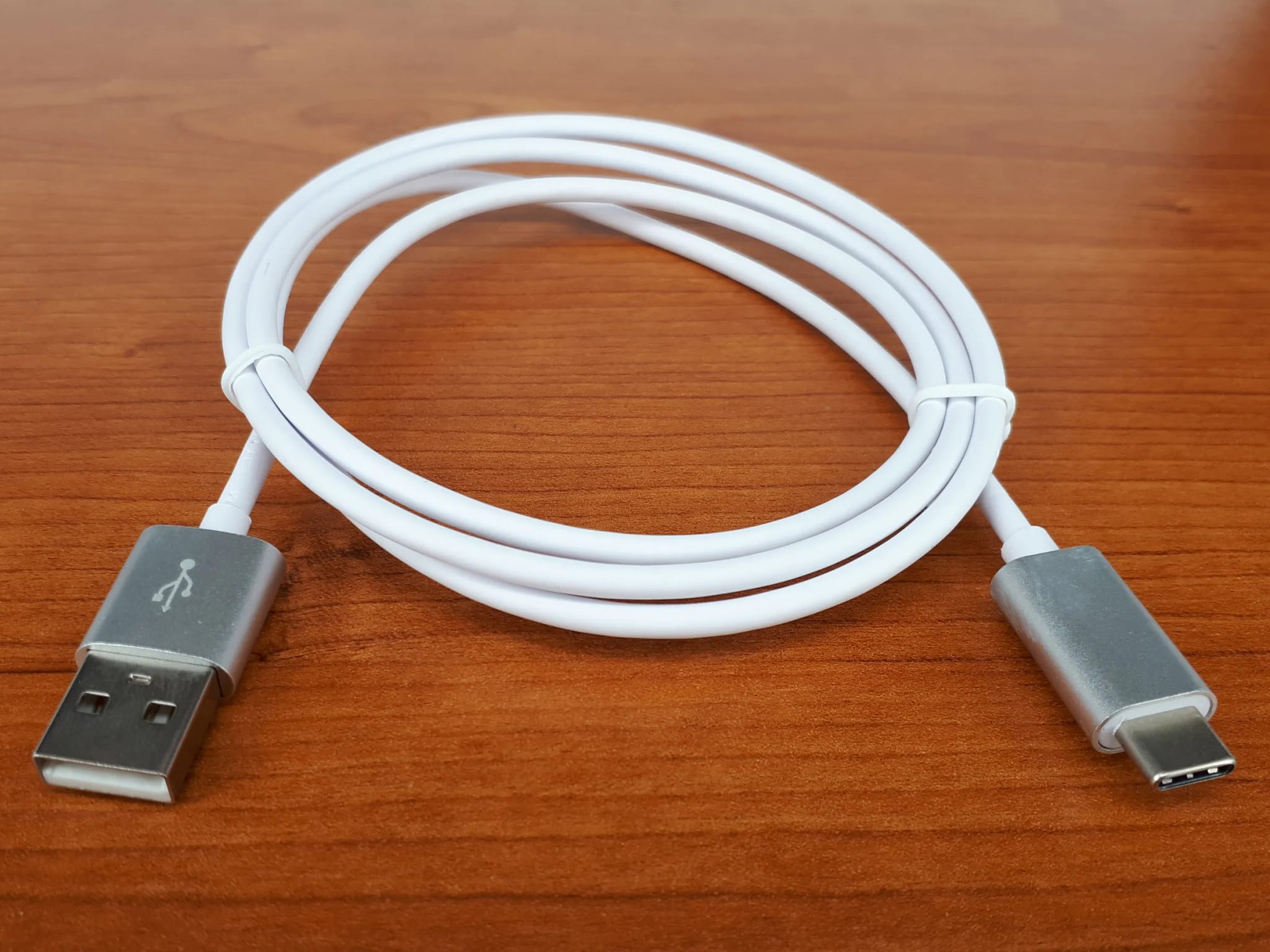
Step by step instructions for moving files from your Android phone using a USB cable.
When Wi-fi Transfers Won't Work
You can use Wi-Fi to transfer files between your Android phone and your PC or Mac, but it’s useless if your internet connection is unavailable or unstable. Thankfully, there’s another option: your trusty USB cable. Read on to find out how to use it to move files between devices without a hitch.
To start, you’ll need the following:
- Your Android phone
- A computer with a USB Type-A or C port
- A USB cable
On Windows
- Unlock your phone.
- Plug it into your computer’s USB port using a cable.
- YourAndroidphone will display a “Charging this device via USB” notification. Tap on it.
- Tapping on the notification will display other options. SelectFile Transferunder “Use USB for.”
- Your computer will show a file transfer window. Drag and drop files from this window to your preferred location on your computer.
- Once you’re done, unplug your USB cable from the computer.
On Mac
Transferring files from an Android device to a Mac is pretty much the same process as that for Android to Windows file transfers, but with a few additional steps:
- Download and install Android File Transferon your computer. Take note that this app only works on Macs running on macOS 10.7 or later.
- Open the Android File Transfer app. You need to open it the first time you use it, but the next time you plug in your device, it will automatically open.
- Unlock your Android app and connect it to your Mac using your USB cable.
- On your phone, tap on the notification that says “Charging this device via USB.”
- Your phone will then display other USB options for your device. Under “Use USB for,” chooseFile Transfer. This will prompt your computer to display an Android File Transfer window.
- Drag and drop files from this window to your preferred location on your computer.
- After backing up your data, eject your USB by right-clicking the icon for the external device on your desktop and selecting “Eject [volume name].” Alternatively, you can drag the external volume icon into the trash can in the Dock.
- Unplug your USB cable.
Transferring files from one device to another is easy, isn’t it? Butdata backupis more than just copying and moving files. If you want to learn more about making your business devices and computers disaster-proof, our dedicated IT experts can help you perform routine backups that go beyond drag-and-drop. With their knowledge in security, data recovery, and business continuity, you never have to worry about losing your data again. Call us today.
Source: TechAdvisory.org
Schedule a no-pressure consultation with our team.
Similar Articles
View all


Step into a safer, Stronger Business.
When you’re ready to move beyond “good enough,” we’re here to help. Reach out to schedule a no-pressure consultation and find out whether we’re a fit.